

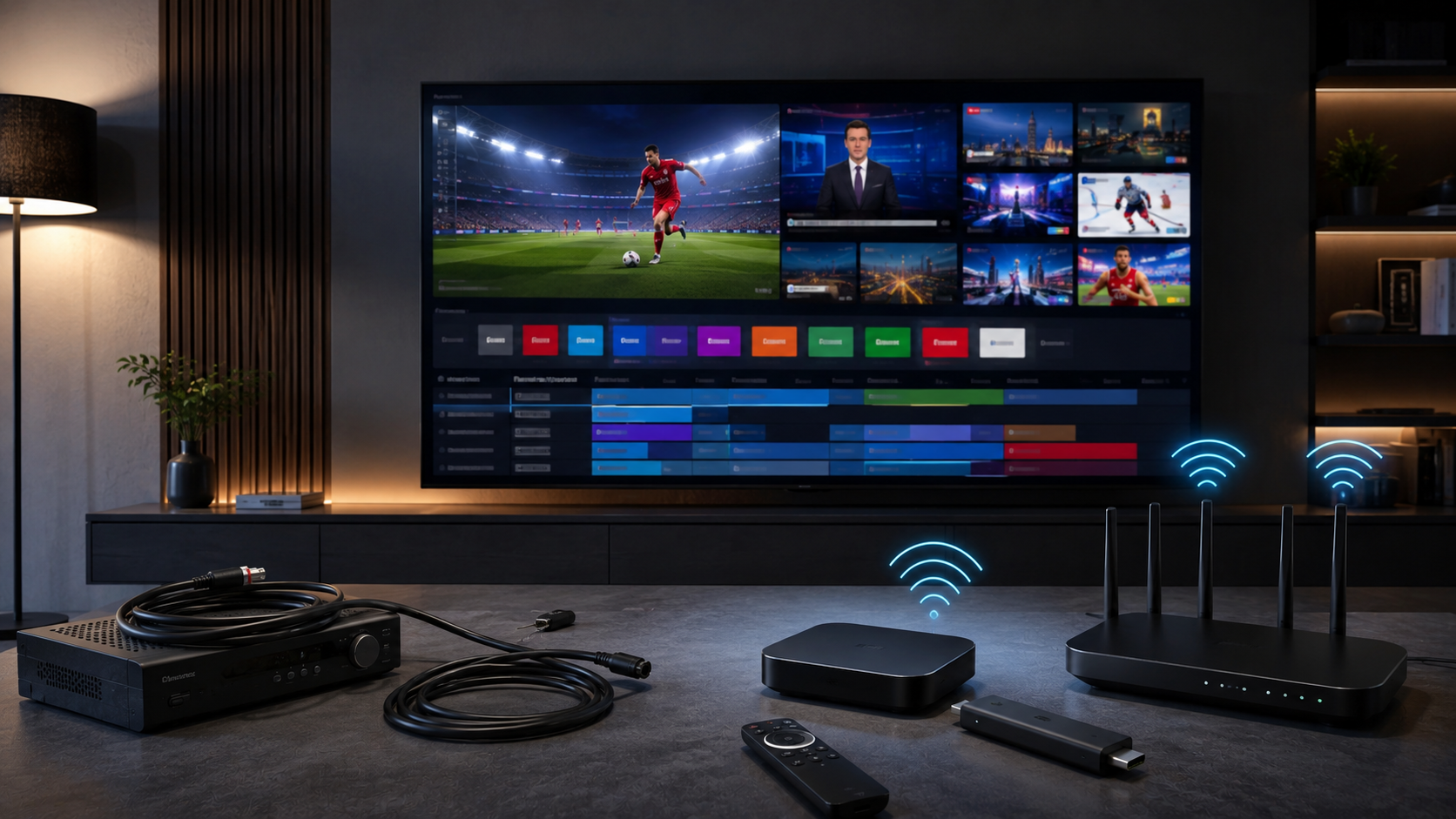
If you’re wondering how to watch live TV without cable, you’re not alone. More viewers are looking for ways to access live channels, sports, news, movies, and entertainment without relying on a traditional cable subscription. The good news is that you have more choices than ever. Today, you can watch live television through IPTV, live TV streaming services, Smart TVs, streaming devices, digital antennas, and other internet-connected platforms. Some options are designed to replace much of the traditional cable experience, while others are better suited to specific types of content. The important thing is understanding how each option works before deciding which one is right for you. If your goal is to watch live TV without cable, this guide explains the main options, what equipment you need, how much internet speed you may need, how IPTV fits into the picture, and what to consider before cutting the cord. What Does It Mean to Watch Live TV Without Cable? Watching live TV without cable means accessing television programming without receiving your channels through a traditional cable television subscription. Instead of a cable connection running directly to a set-top box, your television content may arrive through: The experience can still feel similar to traditional television. You can watch live news, sports, entertainment, movies, and other programming, but the technology delivering those channels is different. This distinction is important because not every streaming service is a replacement for cable. For example, an on-demand platform may give you thousands of movies and shows but no traditional live channel lineup. A live TV service is specifically designed to provide channels that you can watch as they are broadcast. IPTV can also provide a live-TV experience through an internet connection, depending on the service and application being used. How to Watch Live TV Without Cable There are several major ways to watch live television without a traditional cable subscription. 1. IPTV IPTV delivers television programming through an internet connection rather than a traditional cable or satellite television connection. Depending on the service, IPTV can provide access to live channels, sports, movies, series, and video-on-demand content. For viewers who want a large live-TV experience across compatible devices, IPTV can be one of the most flexible options. 2. Live TV Streaming Services Several mainstream streaming platforms offer live television packages designed specifically for cord-cutters. These services can provide live channels, news, sports, entertainment networks, and sometimes cloud DVR functionality. Current 2026 comparisons continue to identify services such as YouTube TV, Hulu + Live TV, Sling TV, Fubo, DIRECTV, and Philo among the major live-TV alternatives to cable. 3. Digital Antenna An over-the-air antenna can provide access to certain local broadcast channels without a monthly cable subscription. This can be particularly useful for viewers who mainly want local news, network television, and other free-to-air broadcasts. However, availability depends heavily on your location and the broadcast signals in your area. 4. Smart TV Applications A modern Smart TV may allow you to install streaming applications directly onto the television. This means you may not need an external streaming box or stick. The exact applications available depend on the television’s operating system. 5. Streaming Devices Devices such as Fire TV, Google TV, Roku, and Apple TV can turn a television into a more flexible streaming platform. They can be particularly useful when your existing television is older or doesn’t support the applications you want. IPTV: One of the Main Ways to Watch Live TV Without Cable For viewers interested specifically in live television, IPTV is worth understanding. IPTV stands for Internet Protocol Television. Instead of receiving television programming through a traditional cable network, IPTV uses internet-based delivery. This makes IPTV fundamentally different from simply downloading movies or watching YouTube videos. The goal can be to provide a television-style viewing experience through an internet-connected device. Depending on the service, an IPTV platform may include: This can make IPTV particularly appealing to people who want to watch live TV without cable while keeping a channel-oriented viewing experience. What Do You Need to Watch Live TV Without Cable? One of the advantages of modern television streaming is that the equipment requirements are relatively simple. In most cases, you need: A Television You can use a modern Smart TV or a regular TV connected to a compatible streaming device. An Internet Connection Internet-based television requires a stable connection. Your required speed depends on video quality, the number of simultaneous streams, and what else is happening on your home network. A Compatible Device Depending on the service, you may use: A Compatible Application The application you use depends on the television platform and service. Before choosing a device, always confirm that the application you intend to use is compatible with it. Your TV Service or Subscription Finally, you need access to the service providing the channels or content you want to watch. For TereaTV users, your subscription and compatible application work together to provide access to the available IPTV content. How Fast Does Your Internet Need to Be? Internet speed is one of the most important factors when you want to watch live TV without cable through an internet-based service. There isn’t one universal speed requirement because different video qualities and household conditions require different amounts of bandwidth. For example, the FCC has discussed approximately 25 Mbps as a benchmark associated with 4K video use, while current streaming guidance can vary by platform and video quality. A practical approach is to think about your household rather than just one television. If one person is streaming HD video while another person is gaming, using video calls, or downloading large files, your connection needs to handle all of those activities simultaneously. For HD Streaming A stable connection with enough available bandwidth for HD video is generally sufficient for a single stream. For 4K Streaming 4K requires considerably more bandwidth than standard-definition or HD video. A connection that works perfectly for one HD stream may struggle when multiple high-resolution streams are running simultaneously. Don’t Look Only at Your

How to Fix IPTV Buffering: 15 Proven Solutions for Smooth Streaming
IPTV buffering can quickly turn a great streaming experience into a frustrating one. You start watching a live TV channel, movie, series, or sports event, and suddenly the picture freezes, the loading circle appears, or the stream drops in quality. If your IPTV keeps buffering, the first reaction is often to blame the IPTV service. Sometimes that is the cause. But in many situations, the real problem is somewhere else. Your Wi-Fi connection, router, streaming device, IPTV player, background applications, VPN, DNS configuration, internet provider, or even a single problematic stream can cause IPTV buffering. That is why the best way to fix IPTV buffering is not to randomly change settings. Instead, you should identify where the problem is happening and then fix that specific part of your setup. In this guide, you’ll learn why IPTV buffers, how to diagnose the problem, and 15 practical ways to improve IPTV streaming on Smart TVs, Fire TV devices, Android TV, Google TV, and other compatible devices. If you’re using TereaTV, you can also review the to make sure your device and IPTV application are configured correctly. What Is IPTV Buffering? IPTV buffering occurs when your device cannot receive enough video data quickly or consistently enough to maintain playback. When you stream IPTV, your player receives video data continuously from a remote source. The player keeps a small amount of data ready in advance so the video can continue playing if the connection slows briefly. When incoming data becomes too slow or unstable, that buffer eventually runs out. You may notice: The important point is that IPTV buffering does not automatically mean your internet speed is too slow. A streaming connection can have excellent download speed while still suffering from instability, Wi-Fi interference, packet loss, congestion, routing problems, or device limitations. Think of IPTV streaming as a complete chain: IPTV source → internet connection → router → Wi-Fi/Ethernet → streaming device → IPTV player → video decoder → television A problem anywhere along this chain can affect playback. Why Does My IPTV Keep Buffering? There are many possible reasons for IPTV buffering. The most common include: The symptoms can help you identify the cause. For example, if every IPTV channel buffers on every device, the problem is very different from a situation where one particular channel buffers while everything else works perfectly. Before changing anything complicated, perform a few simple tests. The 60-Second IPTV Buffering Test Before changing your DNS, installing a VPN, buying a new device, or switching IPTV services, spend one minute diagnosing the problem. Test 1: Try another channel Open a completely different channel. If Channel A buffers but Channel B plays smoothly, your entire internet connection may not be the problem. The issue could be related to that specific stream. If every channel buffers, continue testing your network and device. Test 2: Compare Live TV and VOD If your IPTV service provides both live TV and VOD, test both. Try: If VOD plays smoothly while live TV constantly buffers, the problem may be related to live-stream delivery. If both live TV and VOD buffer, investigate the broader connection, device, application, or service. Test 3: Try another device Use the same IPTV service on another compatible device. For example: If IPTV works normally on one device but constantly buffers on another, your internet connection may not be the main problem. The device, application, Wi-Fi connection, or decoding capability deserves closer attention. Test 4: Compare Wi-Fi and Ethernet If your device supports Ethernet, connect it directly to your router. Then test the same IPTV channel. If buffering disappears, you have strong evidence that your wireless connection is contributing to the problem. Google’s official Google TV troubleshooting documentation recommends rebooting the router, moving the router closer to the TV, using a cable connection, and considering a 5 GHz network when dealing with connection and playback problems. This simple test can tell you more than changing several advanced settings at once. 15 Ways to Fix IPTV Buffering Now let’s go through the most useful IPTV buffering solutions, starting with the easiest. 1. Restart Your IPTV Device One of the simplest IPTV buffering fixes is restarting the device. Streaming devices can remain active for days or weeks. Applications may accumulate temporary data, background processes may remain open, and the device may not perform as efficiently as it did after a fresh restart. Restart your: Then wait for your internet connection to return and test IPTV again. Google recommends restarting Google TV devices as part of its troubleshooting process for playback and performance problems. If the buffering immediately returns, move to the next step. 2. Restart Your Router Your router is responsible for managing the connection between your home network and the internet. A temporary router problem can affect streaming even when your internet package is normally fast. Turn the router off, wait for it to fully power down, and then restart it. After the connection returns, test IPTV again. This is especially useful when: Google’s troubleshooting guidance also recommends rebooting the router when Google TV has connection or playback problems. 3. Use Ethernet Instead of Wi-Fi If possible, connect your streaming device directly to the router using Ethernet. Ethernet removes many of the variables associated with wireless networking. Wi-Fi performance can be affected by: This does not mean Wi-Fi is bad for IPTV. Many people stream IPTV successfully over Wi-Fi. However, Ethernet gives you a useful test. If IPTV works smoothly through Ethernet but buffers over Wi-Fi, focus on your wireless network rather than immediately blaming your IPTV service. Google specifically recommends a cable connection as one possible solution for Google TV connection problems. 4. Try a 5 GHz Wi-Fi Network Modern routers often provide both 2.4 GHz and 5 GHz Wi-Fi. If your streaming device is reasonably close to your router, try connecting it to the 5 GHz network. 5 GHz can provide better wireless performance in suitable conditions, although its effective range can be shorter than 2.4 GHz. Google’s official Google
