

IPTV buffering can quickly turn a great streaming experience into a frustrating one. You start watching a live TV channel, movie, series, or sports event, and suddenly the picture freezes, the loading circle appears, or the stream drops in quality.
If your IPTV keeps buffering, the first reaction is often to blame the IPTV service. Sometimes that is the cause. But in many situations, the real problem is somewhere else.
Your Wi-Fi connection, router, streaming device, IPTV player, background applications, VPN, DNS configuration, internet provider, or even a single problematic stream can cause IPTV buffering.
That is why the best way to fix IPTV buffering is not to randomly change settings. Instead, you should identify where the problem is happening and then fix that specific part of your setup.
In this guide, you’ll learn why IPTV buffers, how to diagnose the problem, and 15 practical ways to improve IPTV streaming on Smart TVs, Fire TV devices, Android TV, Google TV, and other compatible devices.
If you’re using TereaTV, you can also review the to make sure your device and IPTV application are configured correctly.
What Is IPTV Buffering?
IPTV buffering occurs when your device cannot receive enough video data quickly or consistently enough to maintain playback.
When you stream IPTV, your player receives video data continuously from a remote source. The player keeps a small amount of data ready in advance so the video can continue playing if the connection slows briefly.
When incoming data becomes too slow or unstable, that buffer eventually runs out.
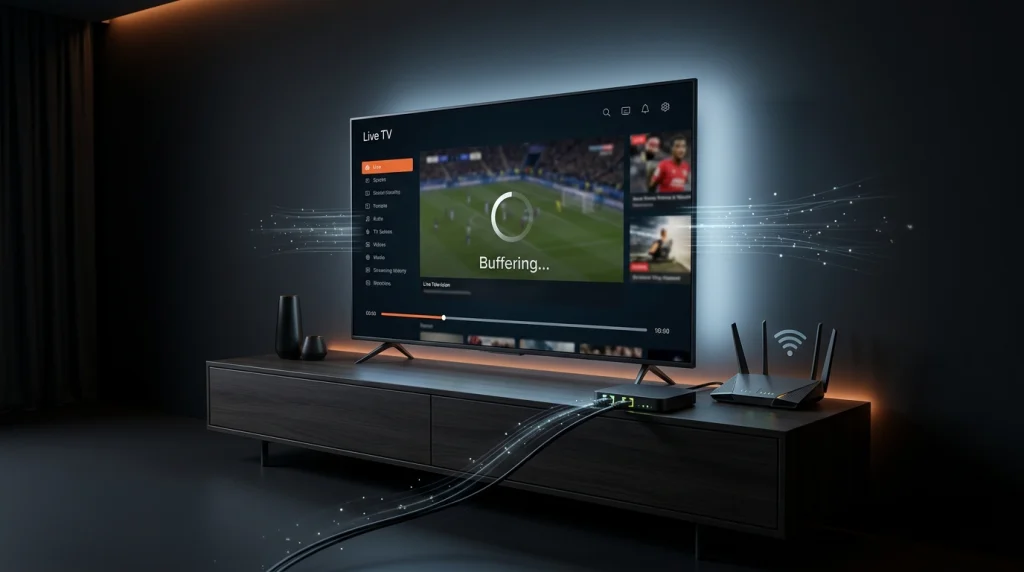
You may notice:
- A spinning loading icon
- Frozen video
- Repeated pauses
- Audio interruptions
- Pixelated images
- Sudden quality changes
- Channels taking a long time to load
- Video stopping completely
- Live sports freezing at important moments
The important point is that IPTV buffering does not automatically mean your internet speed is too slow.
A streaming connection can have excellent download speed while still suffering from instability, Wi-Fi interference, packet loss, congestion, routing problems, or device limitations.
Think of IPTV streaming as a complete chain:
IPTV source → internet connection → router → Wi-Fi/Ethernet → streaming device → IPTV player → video decoder → television
A problem anywhere along this chain can affect playback.
Why Does My IPTV Keep Buffering?
There are many possible reasons for IPTV buffering.
The most common include:
- Weak Wi-Fi
- Wireless interference
- Router congestion
- Too many connected devices
- Unstable internet
- An overloaded streaming device
- Outdated IPTV applications
- Application cache problems
- Incorrect playback settings
- VPN routing issues
- DNS or network configuration problems
- ISP congestion
- A problematic IPTV stream
- Provider-side server congestion
- Hardware limitations
The symptoms can help you identify the cause.
For example, if every IPTV channel buffers on every device, the problem is very different from a situation where one particular channel buffers while everything else works perfectly.
Before changing anything complicated, perform a few simple tests.
The 60-Second IPTV Buffering Test
Before changing your DNS, installing a VPN, buying a new device, or switching IPTV services, spend one minute diagnosing the problem.
Test 1: Try another channel
Open a completely different channel.
If Channel A buffers but Channel B plays smoothly, your entire internet connection may not be the problem.
The issue could be related to that specific stream.
If every channel buffers, continue testing your network and device.
Test 2: Compare Live TV and VOD
If your IPTV service provides both live TV and VOD, test both.
Try:
- One live TV channel
- One movie
- One series episode
If VOD plays smoothly while live TV constantly buffers, the problem may be related to live-stream delivery.
If both live TV and VOD buffer, investigate the broader connection, device, application, or service.
Test 3: Try another device
Use the same IPTV service on another compatible device.
For example:
- Smart TV
- Android TV
- Google TV
- Fire TV device
- Smartphone
- Tablet
- Computer
If IPTV works normally on one device but constantly buffers on another, your internet connection may not be the main problem.
The device, application, Wi-Fi connection, or decoding capability deserves closer attention.
Test 4: Compare Wi-Fi and Ethernet
If your device supports Ethernet, connect it directly to your router.
Then test the same IPTV channel.
If buffering disappears, you have strong evidence that your wireless connection is contributing to the problem.
Google’s official Google TV troubleshooting documentation recommends rebooting the router, moving the router closer to the TV, using a cable connection, and considering a 5 GHz network when dealing with connection and playback problems.
This simple test can tell you more than changing several advanced settings at once.
15 Ways to Fix IPTV Buffering
Now let’s go through the most useful IPTV buffering solutions, starting with the easiest.
1. Restart Your IPTV Device
One of the simplest IPTV buffering fixes is restarting the device.
Streaming devices can remain active for days or weeks. Applications may accumulate temporary data, background processes may remain open, and the device may not perform as efficiently as it did after a fresh restart.
Restart your:
- Smart TV or streaming device
- IPTV application
- Router
Then wait for your internet connection to return and test IPTV again.
Google recommends restarting Google TV devices as part of its troubleshooting process for playback and performance problems.
If the buffering immediately returns, move to the next step.
2. Restart Your Router
Your router is responsible for managing the connection between your home network and the internet.
A temporary router problem can affect streaming even when your internet package is normally fast.
Turn the router off, wait for it to fully power down, and then restart it.
After the connection returns, test IPTV again.
This is especially useful when:
- Websites are also slow
- Other streaming services buffer
- Multiple devices are experiencing problems
- Wi-Fi keeps disconnecting
- IPTV worked normally earlier
Google’s troubleshooting guidance also recommends rebooting the router when Google TV has connection or playback problems.
3. Use Ethernet Instead of Wi-Fi
If possible, connect your streaming device directly to the router using Ethernet.
Ethernet removes many of the variables associated with wireless networking.
Wi-Fi performance can be affected by:
- Distance
- Walls
- Floors
- Wireless interference
- Other networks
- Connected devices
- Router placement
- Network congestion
This does not mean Wi-Fi is bad for IPTV.
Many people stream IPTV successfully over Wi-Fi.
However, Ethernet gives you a useful test.
If IPTV works smoothly through Ethernet but buffers over Wi-Fi, focus on your wireless network rather than immediately blaming your IPTV service.
Google specifically recommends a cable connection as one possible solution for Google TV connection problems.
4. Try a 5 GHz Wi-Fi Network
Modern routers often provide both 2.4 GHz and 5 GHz Wi-Fi.
If your streaming device is reasonably close to your router, try connecting it to the 5 GHz network.
5 GHz can provide better wireless performance in suitable conditions, although its effective range can be shorter than 2.4 GHz.
Google’s official Google TV guidance specifically recommends considering a 5 GHz network when available.
Try:
2.4 GHz → test IPTV
Then:
5 GHz → test the same IPTV channel
If the second connection is noticeably more stable, you’ve identified an important part of the problem.
5. Move Your Router Closer
Router placement can make a surprisingly large difference.
Avoid placing your router:
- Inside a cabinet
- Behind your television
- On the floor
- Behind large appliances
- In an enclosed corner
- Very far from your streaming device
If your TV is several rooms or floors away from the router, the Wi-Fi signal may be significantly weaker than the connection your phone experiences near the router.
Google also recommends moving the router closer to the TV when troubleshooting Google TV connection problems.
If moving the router is not practical, consider:
- Ethernet
- A mesh Wi-Fi system
- A properly positioned access point
- Another suitable networking solution
6. Stop Heavy Network Activity
Your IPTV stream shares your internet connection with everything else in your home.
Someone downloading a large game, uploading videos, performing a cloud backup, or running multiple high-resolution streams can increase network congestion.
Before an important live sports event, check whether your network is handling heavy traffic.
Look for:
- Game downloads
- Large software updates
- Cloud backups
- Large file uploads
- Multiple simultaneous streams
- Security-camera uploads
- Other high-bandwidth activity
You don’t necessarily need to disconnect every device.
Start by stopping the activities that consume significant bandwidth.
7. Check Internet Stability, Not Just Speed
A common mistake is looking only at download speed.
Imagine your connection delivers excellent speed most of the time but briefly becomes unstable every few seconds.
A speed test may still show a high number, while live IPTV continues to freeze.
When troubleshooting IPTV buffering, consider:
- Download speed
- Latency
- Packet loss
- Connection stability
- Wi-Fi strength
- Network congestion
- Performance at different times
Also remember that a speed test performed on a smartphone next to your router does not necessarily represent the connection your television receives.
For a more useful comparison, test as close as possible to the device experiencing the problem.
8. Temporarily Reduce Video Quality
If a 4K IPTV stream buffers constantly while Full HD plays smoothly, that difference gives you valuable information.
Try lowering the stream quality temporarily.
For example:
4K → buffering
Full HD → smooth
This could indicate that the issue involves:
- Network stability
- Available bandwidth
- Device processing
- Video decoding
- The particular 4K stream
Reducing quality should not automatically be treated as the permanent solution.
Instead, use it as a diagnostic test.
If Full HD works perfectly, you can investigate why the higher-quality stream is exceeding the capabilities of your setup.
9. Update Your IPTV Player
An outdated IPTV application may have compatibility or performance problems.
Check whether an official update is available for your application.
After updating:
- Restart your device.
- Open the IPTV player.
- Reload your playlist or service.
- Test several channels.
- Compare the result.
Google recommends keeping applications updated when troubleshooting slow or problematic Google TV devices.
Avoid installing modified IPTV applications from unknown sources simply because they claim to provide better performance.
Use reputable sources whenever possible.
10. Clear the IPTV App Cache
Temporary application data can sometimes contribute to performance problems.
If your device provides an option to clear an application’s cache, try it.
On many Android-based devices, the general path is similar to:
Settings → Apps → IPTV App → Storage
Depending on the device, you may see options such as:
- Clear cache
- Clear data
- Force stop
Start with Clear cache.
Be careful with “Clear data,” because it may remove saved settings or login information.
Google also includes clearing app data among its official troubleshooting steps for Google TV playback issues.
11. Close Background Applications
Your streaming device has limited processing and memory resources.
If many applications remain active, they may affect device performance.
Google recommends force-stopping recently opened applications when troubleshooting slow or laggy Google TV devices.
Before streaming:
- Close unnecessary applications
- Stop downloads
- Finish pending updates
- Restart the device if necessary
This can be especially useful with older Smart TVs and lower-powered streaming devices.
12. Test Different Player or Decoder Settings
Some IPTV players provide additional playback settings.
Depending on the application, you may see options related to:
- Hardware decoding
- Software decoding
- Hardware acceleration
- External players
- Buffer size
There is no single setting that works best for every device.
A decoder that performs well on one Android TV device may perform differently on another.
If your application allows it, test one supported playback option at a time.
For example:
Current decoder → alternate supported decoder → same channel → compare
Don’t change multiple settings simultaneously.
Otherwise, you won’t know which change actually affected the result.
13. Test Your VPN
A VPN is sometimes suggested as a solution to IPTV buffering.
But a VPN is not a guaranteed buffering fix.
A VPN changes the network route between your device and the destination.
In some situations, a different route can improve connectivity.
In other situations, the VPN can make streaming worse by adding latency or reducing available throughput.
Therefore, perform a simple comparison.
Test A
IPTV with the VPN disabled.
Test B
IPTV with the VPN enabled using a reputable server.
If the VPN makes performance worse, turn it off.
If it consistently improves performance, you have useful information about the connection path.
Don’t assume that a VPN automatically makes IPTV faster.
14. Test Another IPTV Player
If the same IPTV service works on one application but buffers on another, the player may be part of the problem.
Keep the rest of the setup identical:
- Same device
- Same network
- Same IPTV subscription
- Same channel
Then compare the applications.
If:
Player A → buffering
Player B → smooth
the IPTV source and internet connection may be fine.
The difference could be related to the player’s playback engine, decoder, cache, or configuration.
15. Determine Whether the IPTV Source Is the Problem
Sometimes you’ve done everything correctly and the stream itself is the problem.
This becomes more likely when:
- Your internet connection is stable
- Other streaming services work normally
- Multiple devices experience the same IPTV problem
- Multiple IPTV players have the same issue
- The same channels repeatedly buffer
- Other channels work normally
- Problems occur during specific periods
- The provider experiences an outage or server issue
Not every IPTV buffering problem can be fixed from the user’s side.
Sometimes the source, server capacity, routing, or upstream infrastructure is responsible.
Why Does IPTV Buffer With Fast Internet?
This is one of the most common IPTV questions.
You might have:
- 100 Mbps
- 300 Mbps
- 500 Mbps
- 1 Gbps
and still experience IPTV buffering.
Why?
Because raw download speed is only one part of the streaming equation.
Imagine a highway.
Your internet package may provide a large highway, but congestion can still occur at another point on the route.
The same principle applies to IPTV.
Potential bottlenecks include:
- Wi-Fi interference
- Router performance
- Packet loss
- ISP congestion
- Routing
- Device limitations
- IPTV application problems
- Stream-source capacity
Therefore, upgrading from 100 Mbps to 1 Gbps may not fix IPTV buffering if your television has an unstable Wi-Fi connection.
Always diagnose the bottleneck first.
How to Tell if Your IPTV Provider Is Causing Buffering
Before changing your IPTV provider, perform a few tests.
Test multiple channels
If only one channel buffers, the problem may be specific to that stream.
If dozens of channels buffer, the issue is broader.
Test Live TV and VOD
If VOD is smooth but live TV repeatedly freezes, the issue may be related to live-stream delivery.
If everything buffers, investigate the entire setup.
Test at different times
Try the same channel:
- In the morning
- During the afternoon
- In the evening
- During a major sports event
If a stream is consistently smooth during quieter periods but repeatedly struggles during peak viewing times, server or network congestion may be involved.
Test another device
Use the same IPTV subscription on another compatible device.
If the same channels fail across multiple devices, the service becomes more likely to be part of the problem.
Test another network
If practical, temporarily connect your streaming device through another internet connection, such as a mobile hotspot.
This changes the network path.
If IPTV works on the alternative network but not your normal home connection, investigate your home network or ISP.
If the same channels fail across both connections, investigate the IPTV source or service.
IPTV Buffering During Live Sports
Live sports can be particularly demanding.
A movie can often be buffered ahead of playback.
Live sports are different because the content is being delivered in real time.
Major events can also attract large numbers of viewers simultaneously.
That means your IPTV setup should be tested before an important event rather than five minutes before kickoff.
For live sports:
- Restart your device beforehand.
- Check your connection.
- Use Ethernet if available.
- Use 5 GHz Wi-Fi when appropriate.
- Stop large downloads.
- Test the channel early.
- Keep an alternative stream or channel available.
- Avoid changing multiple settings immediately before the event.
If a service consistently struggles during major events but works normally at other times, that is useful information when evaluating its reliability.
How to Fix IPTV Buffering on Fire TV
If IPTV keeps buffering on a Fire TV device, start with the general troubleshooting process.
First
Restart the Fire TV device.
Second
Restart your router.
Third
Check the Wi-Fi signal.
Fourth
Test 5 GHz Wi-Fi if available.
Fifth
Try Ethernet if your setup supports it.
Sixth
Close unnecessary applications.
Seventh
Update your IPTV player and device software.
Eighth
Test another compatible IPTV player.
Ninth
Try a lower-quality stream temporarily.
Tenth
Compare the same IPTV service on another device.
The important principle is to change one variable at a time.
How to Fix IPTV Buffering on Smart TV
Smart TVs can experience IPTV buffering for reasons unrelated to the IPTV subscription.
Older televisions may have:
- Slower processors
- Less memory
- Older Wi-Fi hardware
- Outdated applications
- Limited decoding capabilities
Start with:
- Restarting the TV
- Restarting the router
- Checking Wi-Fi
- Testing 5 GHz
- Testing Ethernet
- Updating TV software
- Updating the IPTV application
- Clearing the application’s cache
- Testing another IPTV player
- Testing another device
If IPTV works perfectly on another streaming device using the same network and subscription, the television may be the limiting factor.
How to Fix IPTV Buffering on Android TV and Google TV
Android TV and Google TV devices provide several useful troubleshooting options.
Start with the network.
Then restart the device.
Close unnecessary applications.
Check application updates.
Check system updates.
Google’s official troubleshooting documentation recommends checking Wi-Fi, restarting the router, trying Ethernet, considering 5 GHz, updating the system, restarting the device, and clearing application data when troubleshooting playback issues.
If the IPTV application still buffers, test another compatible player.
This helps determine whether the problem is application-specific or caused by something outside the application.
Should You Change DNS for IPTV?
DNS is frequently mentioned in IPTV troubleshooting guides.
DNS helps translate domain names into network addresses.
Changing DNS can sometimes help with particular network-resolution problems.
However, DNS is not a universal IPTV buffering solution.
Changing DNS will not magically fix:
- Weak Wi-Fi
- Packet loss
- An overloaded device
- Server congestion
- A problematic IPTV source
If you want to test another DNS service, do it systematically.
Change the DNS configuration, test the same channels, and compare the results.
If there is no improvement, return to your previous configuration.
Google also warns that devices or configurations that replace DNS can affect Wi-Fi connectivity, which is another reason to treat DNS changes as a test rather than a guaranteed solution.
Do You Need a VPN for IPTV?
No.
A VPN is not automatically required for IPTV.
Whether one helps depends on your network, location, routing, and the destination server.
A VPN can sometimes change the route between your device and a streaming source.
That may help in certain circumstances.
But it can also introduce additional latency or reduce available bandwidth.
If you use a VPN, compare performance with it enabled and disabled.
Use a reputable VPN service and choose a server that provides a sensible connection for your location.
The goal should always be measurable improvement—not simply assuming that a VPN will solve IPTV buffering.
What Internet Speed Do You Need for IPTV?
There isn’t one internet-speed number that guarantees perfect IPTV playback.
Higher-resolution streams generally require more bandwidth than lower-resolution streams, but bitrate, compression, codec, device capabilities, and network conditions all matter.
More importantly, your connection needs to remain stable.
For example, a household may have a fast internet plan but simultaneously use the network for:
- IPTV
- Netflix
- YouTube
- Gaming
- Video calls
- Cloud backups
- Downloads
- Security cameras
The connection may become congested even though the advertised speed looks more than sufficient.
Think about:
Speed + stability + latency + packet loss + congestion
rather than speed alone.
How to Get the Most Stable IPTV Experience
Once you’ve fixed your immediate buffering problem, a few habits can help maintain a smoother setup.
Keep your streaming device updated
Install official system and application updates when available.
Google recommends checking both application and system updates when troubleshooting slow or unstable Google TV devices.
Keep the device well ventilated
Avoid covering your streaming device or placing it somewhere that traps excessive heat.
Thermal problems can affect device performance.
Prefer Ethernet when practical
If your TV or streaming box is close enough to the router, Ethernet is a simple way to reduce wireless variables.
Keep your router in a sensible location
An open, reasonably central location can provide better wireless coverage than placing the router inside furniture.
Avoid unnecessary background activity
Large downloads and backups can compete with streaming traffic.
Test before important events
If you plan to watch a major live sports event, test your setup beforehand.
Don’t wait until the event begins to discover that something is wrong.
When Should You Change Your IPTV Provider?
Changing providers should not be your first response to every buffering problem.
First eliminate problems with:
- Your Wi-Fi
- Router
- Device
- IPTV player
- Network congestion
- VPN
- DNS
- ISP connection
However, changing services may become reasonable when you consistently find that:
- Your internet connection is stable
- Other streaming services work normally
- Multiple devices experience the same IPTV issue
- Multiple IPTV players experience the same issue
- The same channels repeatedly buffer
- Problems occur during peak viewing periods
- The provider cannot explain persistent interruptions
- Support does not respond adequately
When evaluating an IPTV service, don’t judge it only by the number of channels advertised.
Also consider:
- Stream stability
- Picture quality
- Channel availability
- VOD performance
- Device compatibility
- Support
- Reliability during peak periods
- Subscription transparency
More channels do not automatically mean a better IPTV experience.
Reliability matters.
Choosing a Better IPTV Setup
If you’re looking for a smoother streaming experience, start with your complete setup rather than focusing on one component.
Your ideal IPTV setup should combine:
Stable internet + reliable Wi-Fi/Ethernet + capable device + updated player + dependable IPTV service
TereaTV users can review the TereaTV Pricing Plans to compare available subscription options and choose the plan that matches their viewing needs.
If you’re new to IPTV, the [TereaTV Install Guide] can help you get your compatible device configured correctly.
You can also check the TereaTV FAQs for common questions or Contact TereaTV if you need assistance.
Frequently Asked Questions About IPTV Buffering
Why does my IPTV keep buffering?
IPTV can buffer because of unstable Wi-Fi, network congestion, device limitations, application problems, VPN routing, ISP issues, or problems with the IPTV source. Start by testing another channel and another device before changing advanced settings.
How do I stop IPTV buffering?
Restart your router and streaming device, test your Wi-Fi connection, try Ethernet if available, update your IPTV player, close background applications, and test another compatible player. If the problem continues across multiple devices and channels, investigate the IPTV service itself.
Why does IPTV buffer with fast internet?
Fast internet does not guarantee stable IPTV streaming. Wi-Fi interference, packet loss, router problems, network congestion, device limitations, ISP routing, and IPTV server issues can all cause buffering.
Does Ethernet reduce IPTV buffering?
Ethernet can reduce buffering when unstable Wi-Fi is the cause. A wired connection also provides a useful test for determining whether wireless connectivity is contributing to the problem.
Is 5 GHz Wi-Fi better for IPTV?
5 GHz can provide better wireless performance when the streaming device is reasonably close to the router. However, range and obstacles matter, so Ethernet may still be preferable when available.
Can a VPN fix IPTV buffering?
Sometimes a VPN can improve a particular network route, but it can also reduce performance. Test IPTV with and without the VPN before deciding whether it helps.
Does changing DNS fix IPTV buffering?
DNS changes may help with particular network-resolution problems, but they cannot fix every type of buffering. DNS will not solve weak Wi-Fi, packet loss, device limitations, or an overloaded IPTV server.
Why does only one IPTV channel buffer?
If one channel buffers while others work normally, the problem may be specific to that stream. Test the same channel on another device before changing your entire IPTV setup.
Why does IPTV work on my phone but buffer on my TV?
Your TV may have a weaker Wi-Fi connection, older hardware, a different IPTV application, or different video-decoding capabilities. Compare the TV using Ethernet or another IPTV player.
Why does IPTV buffer during live sports?
Live sports can place greater demand on streaming infrastructure because many viewers may watch the same event simultaneously. Test your service before major events and compare performance at different times.
Should I upgrade my internet plan?
Not necessarily. If your existing connection is already fast enough, upgrading may not fix buffering caused by Wi-Fi, packet loss, device limitations, or IPTV source problems. Diagnose the actual bottleneck first.
Should I change my IPTV provider?
Only after you’ve ruled out problems with your network, device, application, and connection. If the same channels repeatedly buffer across multiple devices while other internet services work normally, the IPTV source may be contributing to the problem.
Final Thoughts: Fix the Cause, Not the Symptoms
IPTV buffering can be frustrating, but the solution is often easier to find when you approach the problem systematically.
Start with the basics.
Restart your streaming device and router. Check your Wi-Fi. Try Ethernet. Test 5 GHz. Stop heavy downloads. Update your IPTV player. Clear its cache. Close unnecessary applications. Test another player. Compare VPN performance. Then investigate DNS, ISP routing, or the IPTV provider if the problem continues.
The most important rule is simple:
Don’t change everything at once.
If you change your Wi-Fi, DNS, VPN, IPTV player, device, and IPTV service simultaneously, you’ll never know what actually fixed the problem.
Instead, change one variable at a time and test the same channel under the same conditions.
A reliable IPTV experience depends on the entire streaming chain—not simply your internet speed and not simply your IPTV subscription.
Once your network, device, player, and IPTV source are working together properly, you can enjoy a much smoother experience across live TV, sports, movies, and VOD.
If you’re ready to explore your options, check the TereaTV Pricing Plans, review the [TereaTV Install Guide], or contact [TereaTV Support] for help getting started.
